
Masters
Reference for the grand, group, speed and beat masters and their controls.
Masters are live controls that sit over the whole show. Open the Masters window using Master in the top toolbar.
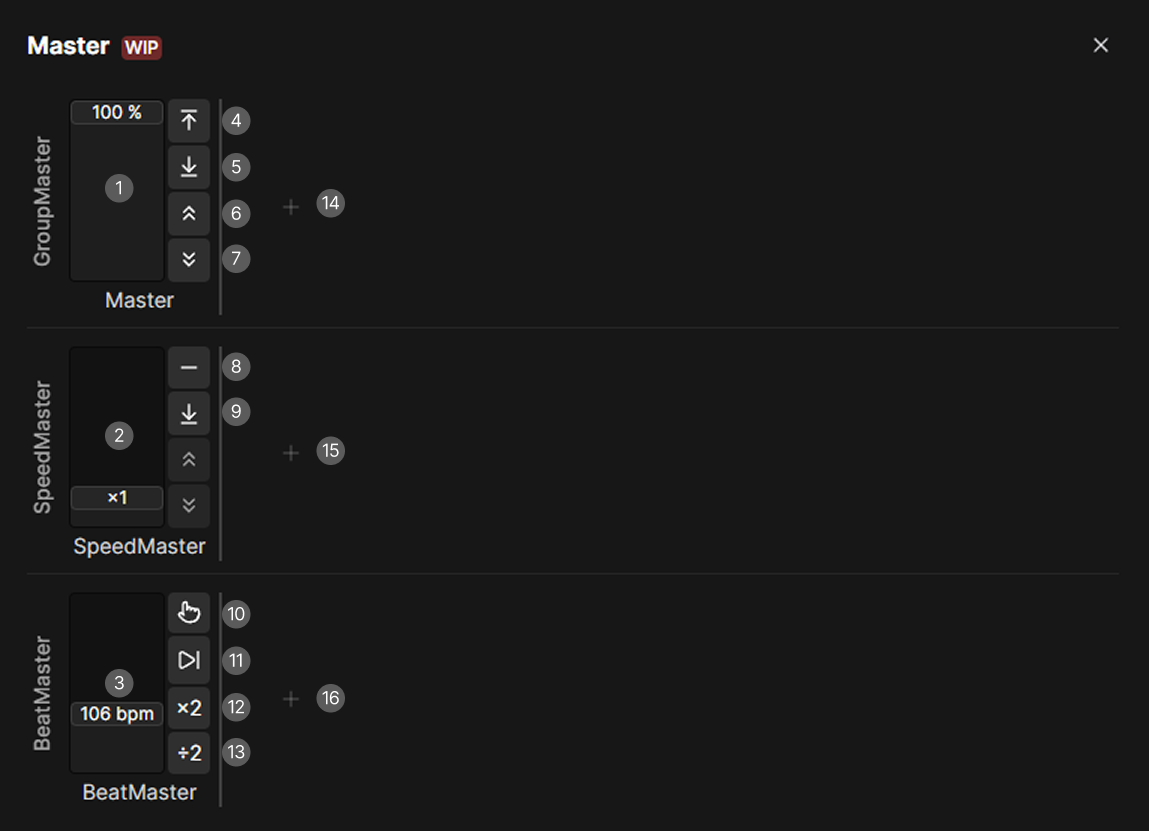
- Grand master fader
- Speed master fader
- Beat master fader
- Top (set to full)
- Bottom (set to 0)
- Ceil (full while holding)
- Floor (0 while holding)
- Set to ×1 for speed masters
- Set to ×0 for speed masters
- Tap for BPM
- Sync for BPM
- Double for BPM
- Half for BPM
- New group master
- New speed master
- New beat master
Each row starts with the grand master of that type, then a divider, then the masters you created, then a + button.
Working with masters
| Action | How |
|---|---|
| Create | The + at the end of a row |
| Assign fixtures | Right-click a group master, Configure fixtures |
| Rename | Right-click a master, Edit Label |
| Remove the label | Right-click, Remove Label, only shown when one is set |
| Delete | Right-click, Remove |
The three grand masters cannot be renamed, labeled or deleted, and they have no context menu.
Every fader takes the mouse wheel, and Shift with the wheel moves it in larger steps.
Grand and group masters
Intensity masters run from 0 to 100 percent. Double-clicking the fader resets it to 100 percent.
| Button | What it does |
|---|---|
| Top | Sets 100 percent |
| Bottom | Sets 0 percent |
| Ceil (hold) | Forces full while held, then releases back to the fader |
| Floor (hold) | Forces zero while held, then releases back to the fader |
The hold buttons never change the stored fader value, they only override it. If both are held, floor wins.
The grand master scales the intensity of every fixture. When it is not at full, the app shows a red warning with its percentage.
A group master scales the intensity of the fixtures you assign to it. Right-click a group master and choose Configure fixtures, or configure it right after you create one, and pick the fixtures and groups it controls in the dialog that opens.
Speed masters
Speed masters run from ×0 to ×10 and scale how fast effects run. Double-clicking the fader resets it to ×1.
| Button | What it does |
|---|---|
| ×1 | Back to normal speed |
| ×0 | Freezes effects on this master |
| Ceil (hold), Floor (hold) | Present but not active yet |
A newly created speed master starts at ×0, which freezes every effect assigned to it. Set it to ×1 after creating it.
Effects and scenes choose their speed master themselves. In an effect editor the SpeedMaster selector defaults to From Scene or Master, which inherits from the scene it plays in, falling back to the project's speed master.
Beat masters
Beat masters hold a tempo from 1 to 360 BPM. New ones start at 120.
| Button | What it does |
|---|---|
| Tap BPM | Tap along and the tempo is averaged from your taps |
| Sync | Re-aligns the beat to now, without changing the tempo |
| Double | Doubles the tempo, up to 360 |
| Half | Halves the tempo, down to 1 |
Tapping uses the taps from the last three seconds and needs at least two of them. The button border flashes on every beat, so you can see the tempo running.
Tap BPM in this window only sets the tempo. The tap button in the toolbar taps and syncs, which is usually what you want when tapping along with a live track.
They are unaffected by speed masters.
BPM in the toolbar
The top toolbar has the grand beat master as a small BPM display:
- Click the number to type a tempo.
- Drag the BPM label sideways to scrub it.
- The mouse wheel changes it too.
- The tap button taps and syncs the tempo.
Blackout
Blackout is not in the Masters window, it sits in the top toolbar. It forces every intensity to zero at the very end of the render. Highlight and Lowlight are suppressed while it is active, and the footer shows a red BLACKOUT warning.
Mapping masters to controls
| Target | Actions |
|---|---|
| GroupMaster | Set value (fader), Set to 0%, Set to 100%, Ceil (hold), Floor (hold) |
| BeatMaster | Tap, Sync, Double, Half, Set to… |
| SpeedMaster | Set value (fader), Set to ×0, Set to ×1, Ceil (hold), Floor (hold) |
The Beat Master target can blink its feedback in time with the beat, which lights a controller button on every beat.