
Use Masters
Scale intensity, effect speed and tempo live with masters.
Masters sit over the whole show. They let you pull intensity down, run effects faster or set a tempo without touching what you programmed. Open the Masters window from the top toolbar.
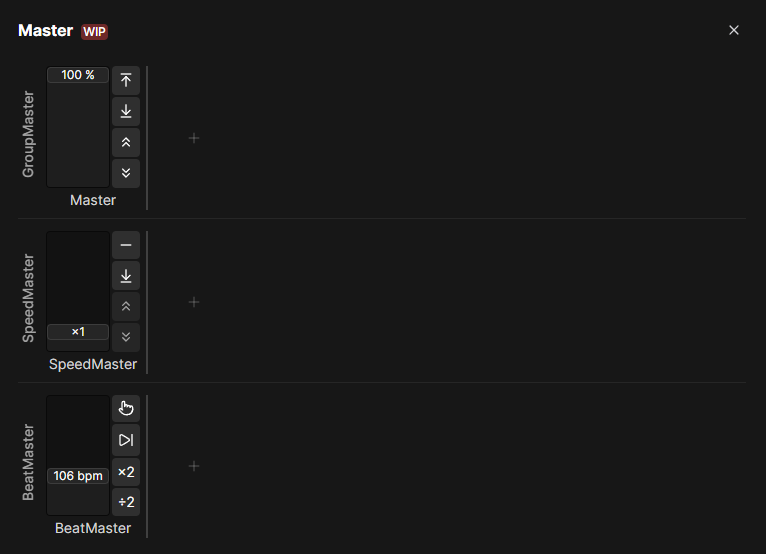
Grand and group masters
The grand master scales every fixture's intensity. Pull it down and the whole rig dims together.
It also has hold buttons. Ceil forces it to full and Floor forces it to zero for as long as you hold them, then it snaps back to where the fader sits. Neither changes the fader itself.
A group master does the same for a selection of fixtures. Create one with the +, then pick the fixtures and groups it controls. To change them later, right-click the master and choose Configure fixtures.
Change effect speed live
A speed master scales how fast effects run, from a standstill up to ten times the base rate. Assign an effect to one and the master moves every effect on it together.
You assign it in the effect editor. The SpeedMaster selector defaults to From Scene or Master, which follows the scene the effect plays in.
A newly created speed master sits at ×0 and freezes everything assigned to it.
Label masters
Right-click a master and choose Edit label to give it a descriptive name. The name appears in the window and in selection lists, so you can tell which master is which when you have several.
Lock effects to the music
A beat master sets a tempo. Effects with beat-timed values follow it, so tapping the tempo of the track locks those effects to the music.
Beat timing ignores the speed masters. An effect running on beats keeps its timing even while you change the speed master for everything else.
Put masters on hardware
Masters are common mapping targets. A fader on a MIDI controller can control the grand master, a button can tap a beat master and both can send feedback back to the hardware. See Map MIDI and Keyboard.
Where to go next
- See Masters Reference for every parameter.