
Curve Editor
Reference for the shared curve editor, its points, interpolation and view controls.
The curve editor is one component used in several places.
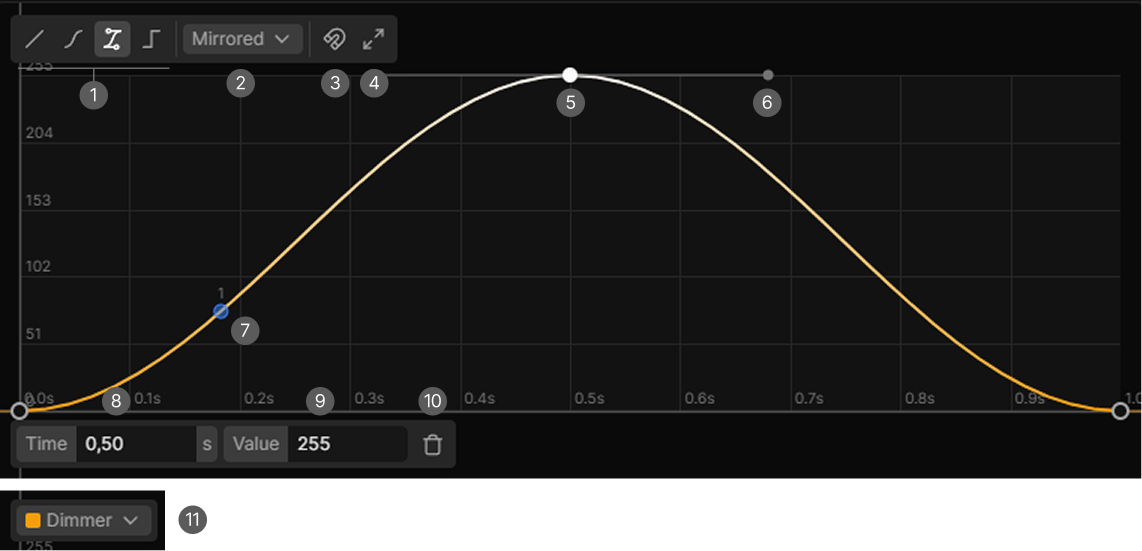
- Point type. Linear, Smooth, Bezier and Hold.
- Bezier handle mode. Aligned, Mirrored and Free. Only while a bezier point is selected.
- Snap to grid.
- Reset view.
- The curve with a point selected.
- Bezier handles on the selected point.
- Preview markers. On effects only.
- X-axis value. The x-value of the selected point.
- Y-axis value. The y-value of the selected point.1
- Delete point button. Removes the selected point.
- Curve selection. Switches between the curves this context offers. Hidden when there is only one.
Where the Curve Editor appears
| Context | Curves | X axis | Y axis |
|---|---|---|---|
| Timeline, scene item | Scene Alpha, Effect Speed | Time in seconds over the item | 0 to 100 percent, and 0 to 10 times |
| Timeline, audio item | Audio Volume | Time in seconds over the item | 0 to 100 percent |
| Curve effect | One per selected channel | Time over the effect duration, in seconds or beats | Value 0 to 255 |
| Position effect | One looping path | Pan 0 to 100 percent | Tilt 0 to 100 percent |
To open the curve editor for a timeline item, right-click it and choose Open in curve editor. The editor docks below the timeline and follows your selection, so clicking another item shows that item's curves.
Points
| Action | How |
|---|---|
| Add | Double-click the canvas, or right-click and choose Add point |
| Move | Drag it. Everything selected moves with it |
| Delete | Delete or Backspace, the trash button, or the context menu |
| Select | Click it |
| Add to the selection | Shift click |
| Select several | Drag a box on empty canvas, Shift to add to the selection |
| Deselect | Click empty canvas |
Values are clamped to the axes, so a point cannot be dragged outside the area. Points may pass each other, in curve mode the editor sorts them by time.
A curve cannot be emptied completely. In curve mode at least two points are required.
Snapping
The magnet button snaps to a grid of twentieths (1/20) on both axes while you drag points. It does not affect handles, typed values or newly added points, and it is off by default.
Typing exact values
With exactly one point selected, two fields appear at the bottom left, labeled after the axes. They show the value in the axis unit, for example seconds and percent.
Interpolation
Each point carries the interpolation for the segment that starts at it, so changing a point changes the curve to its right.
| Type | Shape |
|---|---|
| Linear | A straight line to the next point |
| Smooth | An automatic curve through the points |
| Bezier | A curve you shape yourself with handles |
| Hold | Stays flat, then steps at the next point |
Set it with the four toolbar buttons or by right-clicking a point. It applies to every selected point.
Bezier handles
Handles appear on a point only when it is set to Bezier and it is selected. Drag either dot to shape the segments on each side.
The handle mode dropdown decides what the opposite handle does:
| Mode | Behavior |
|---|---|
| Aligned | The opposite handle follows the direction but keeps its own length. The default |
| Mirrored | The opposite handle is an exact mirror |
| Free | The two handles are independent, giving a corner |
Moving the view
| Input | Result |
|---|---|
| Mouse wheel | Zoom both axes |
| Shift and wheel | Zoom the x (time) axis only |
| Ctrl and wheel | Zoom the y (value) axis only |
| Middle mouse drag | Pan |
| Space held with left drag | Pan |
| Fit view | Frames the whole curve |
Reset view in the context menu does the same as Fit view.
Zooming only one axis is useful for curves that are very flat or very steep, so you can edit the details.
Playhead
In the timeline the playback position shows as a blue line while it is inside the item. Drag it to scrub, exactly like the timeline's own playhead.
Preview markers
In the curve and position effects, a numbered dot per fixture runs along the curve, showing where each one currently sits.
The timeline curve panel has no markers.
The inline editor on timeline items
Timeline items draw a small version of the active curve directly on the item, which you can edit while the item is expanded.
- Double-click adds a point, double-click a point removes it.
- Drag points to move them.
- These points are always linear. To change the interpolation, open the full editor.