
Your First Effect
Add a color effect to your fixtures and store it in a scene.
Effects animate your fixtures over time: a color chase, a dimmer pulse, a moving position. This guide walks you through adding a color effect and storing it in a scene.
Prerequisites
- A few patched fixtures with color channels. If you don't have any yet, start with Getting Started.
Select your fixtures
- In the top toolbar, click Select Layout and choose Edit Scenes.
- In the Stageview, select some fixtures.
An effect runs on the fixtures that are selected when you create it, so select them first. You can change the selection later.
Add a color effect
- In the top left, click the Effects tab. It sits next to Presets, which is open by default.

- The + Add tab is open by default. It shows a list of effect types and presets.
- Scroll to Presets, find the Color row, and click Fade RGB.
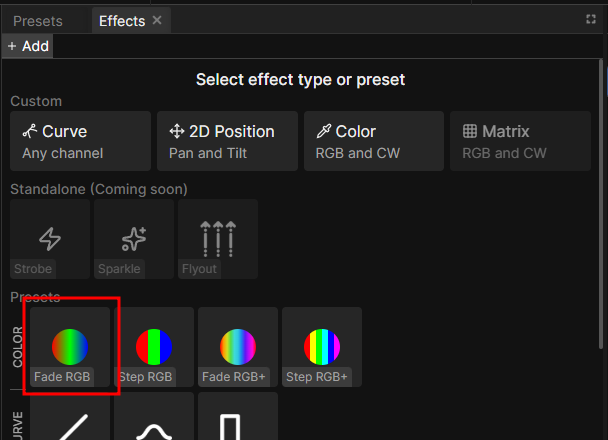
Your fixtures start fading through red, green, and blue right away. The effect lives in the Programmer, the same live layer your manual values go into.
Shape the effect
When creating a new effect, the effect editor opens. The interesting parts for a color effect are:
- Colors is the list it cycles through. Add colors with +, click one to edit or remove it or drag to reorder.
- Delay is how long each color holds.
- Fade is how long it takes to blend into the next one. Set it to zero and the colors step instead of fading.
Try setting Fade to zero and back, the difference between a chase and a smooth wash is exactly this one value.
Right now every fixture shows the same color at the same time. To make the
colors travel across your fixtures, keep the effect selected and raise the
Phase fader in the Functions panel. Phase offsets each fixture against
the others, and you can spread it across the whole selection at once by typing
a range like 0..360-360/n. See Set Fixture
Values for what that syntax does.
Right-click the fader to open a menu with more presets.
Store it in a scene
The effect only lives in the Programmer until you save it.
- In the Scene List (top center), click the green + and name your scene. The current Programmer content, including your effect, is stored as the scene's first step.
- Click Clear programmer in the top toolbar to empty the live layer.
- Press Go to play the scene.
The effect now runs from the scene instead of the Programmer.
Where to go next
- Your First Timeline Show
- Create Effects
- See Effects Reference for a full description of the effects panel and its features.