
Create Effects
Build color, curve, position and matrix effects and point them at fixtures or groups.
Effects animate fixtures over time. They live in the programmer, so they behave like any other live value until you store them.
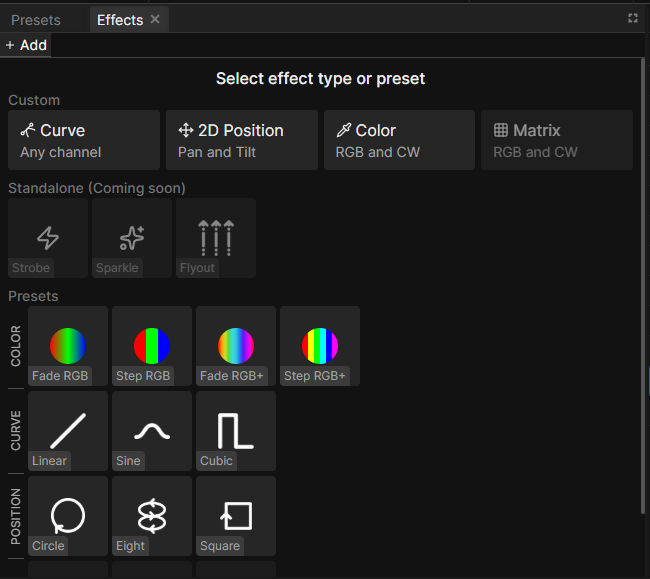
Add an effect
- Select the fixtures you want to animate.
- In the Effects panel, open the Add tab.
- Pick a type under Custom, or start from a Preset.
Presets are pre-built effects that you can tweak. Custom effects start empty, so you can build them from scratch.
There are four types. Curve drives any channel, 2D Position drives pan and tilt, Color drives color channels, and Matrix plays a 2D image across a rectangle you draw on a Stageview and maps it onto the color channels of the fixtures underneath.
Pick the fixtures
An effect starts on the fixtures that were selected when you created it. The Fixtures picker at the top of the editor changes that later.
Picking a group instead of individual fixtures references the group directly. The effect then follows the group, so adding a fixture to that group later adds it to the effect too.
An effect with no fixtures shows a red Effect has no fixtures badge and does nothing. A Matrix effect is the exception: an empty picker means every fixture in its Stageview.
Effect phase
By default every fixture does the same thing at the same moment. Phase is used to offset fixtures from others, so the effect travels across the selection. It does not apply to a Matrix effect, where a fixture's position under the rectangle is what offsets it.
With the effect selected, go to the Functions panel and raise the Phase fader. Typing 0..360-360/n spreads a full cycle evenly across the selection regardless of how many fixtures you picked.
While an effect tab is selected, fader changes in the Functions panel apply to that effect. Switch to a different effect tab to control its phase.
Unlike other channels, phase has a range of 0 to 360 degrees, so it can be
spread across the selection with a range like 0..360-360/n. See Set Fixture
Values for what that syntax does.
Effect timing
Every effect time can be entered in milliseconds or in beats. Beats follow the beat master, so a chase set in beats stays with the music when the tempo changes.
Assign the effect to a SpeedMaster if you want to change its speed live during the show. The default, From Scene or Master, follows whatever the scene it plays in uses.
Store the effect
The effect runs in the programmer until you save it. Create a scene, or select one and press Add step, then Clear programmer and play it back.
Where to go next
- See Effects Panel Reference for every control.
- Color, Curve, Position and Matrix parameters.