
Stageview Panel
Reference for the 2D fixture view, its selection, arrangement and view controls.
The Stageview is a 2D picture of your rig. Fixtures sit on a grid and show a live preview of their output, and it is where most selecting happens.
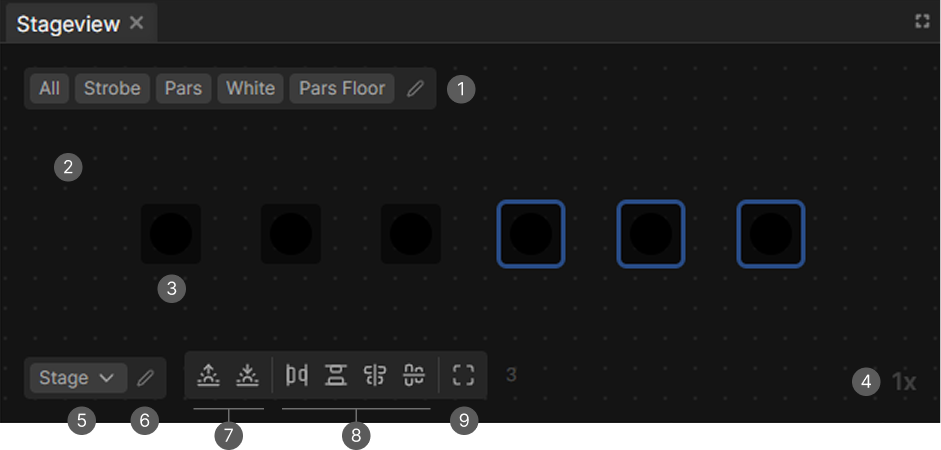
- Group bar. Selects groups and folders, plus All and Edit groups.
- Canvas. The grid the fixtures sit on.
- Fixture item. One per fixture, showing color, intensity, pan and tilt.
- Current zoom level.
- Stageview selector. Switches between stageviews, with buttons for a new folder and a new stageview.
- Edit menu. Select visible fixtures, rename or delete the stageview.
- Highlight and Lowlight.
- Align and distribute tools. Only visible while something is selected.
- Fit to view.
Selecting fixtures
| Action | Result |
|---|---|
| Click a fixture | Selects it and replaces the selection |
| Ctrl or Shift click | Toggles that fixture in the selection |
| Drag on the background | Box select, replacing the selection |
| Ctrl or Shift and drag | Box select, added to the current selection |
| Click the background | Clears the selection |
| Double-click a fixture | Selects the whole device it belongs to |
A box only catches fixtures it fully covers.
Matrix fixtures
A fixture built from individually addressable pixels renders as a grid of lamps, one per pixel, and each of those is a Subfixture you can select on its own. Double-clicking any of them selects the whole device, a box catches single pixels, and right-clicking the device allow you to select the named pixel groups from its definition, such as the halves and quarters of a bar.
Ghost selection
Fixtures in the ghost selection get a dark blue ring instead of the lighter blue selection ring. This is used when working with odd and even tricks for example.
The group bar
Group buttons select their fixtures and fit the view to them. Folders open and select everything below them at once, and a back arrow returns you to the top level.
Only groups with at least one fixture in this stageview appear. A group button highlights when the current selection matches it exactly.
Edit groups opens the Groups page in Project Settings.
Arranging fixtures
Drag a fixture to move it. Dragging one that is not selected selects it first, and dragging with several selected moves them all together. Positions always snap to the grid.
With a selection active, five tools appear:
| Tool | What it does |
|---|---|
| Distribute horizontally | Spreads the selection evenly between its leftmost and rightmost fixture |
| Distribute vertically | The same top to bottom |
| Align vertically | Lines the selection up in a vertical column |
| Align horizontally | Lines the selection up in a horizontal row |
| Fit to view | Pans and zooms so the selection fills the panel |

- Before
- After Distribute vertically
Orientation
An item can be turned in 90 degree steps, for a bar that hangs sideways or a panel mounted upside down. Hold Shift and drag just outside one of its corners, where the cursor turns into a rotate arrow, or right-click it and pick Turn left or Turn right. The orientation is stored per Stageview, so the same device can face a different way in each one.
Unlinking pixels
A matrix fixture's pixels normally move as one grid. Select the ones you want to unlock, right-click the device and pick Unlink, and they come loose and drag on their own from then on. Link back returns them to the grid.
What a fixture shows
Each fixture item renders its live output:
- Color fills the item. A fixture with multiple colors (split colors) shows them as a pie.
- Intensity sets how opaque the fill is, so a dark fixture fades out.
- Pan and tilt move the "lamp" inside the item, giving a rough idea of where it points.
- Strobe flashes the item at the strobe rate.
The outline of the "lamp" shows the fixture's current color, so you can see the color even when the intensity is low.
Moving the view
- Mouse wheel zooms.
- Right mouse button drag pans.
- Fit to view frames the current selection.
Multiple stageviews
The selector at the bottom left holds as many stageviews as you want, organized in folders. Useful when one project covers several stages, or when you want a full rig view and a close-up of one truss.
Choosing visible fixtures
Select fixtures in the Edit menu opens a dialog, where you can edit Visible Fixtures. This limits the stageview to those fixtures, and an empty list shows everything.
Highlight and Lowlight
Highlight (sunrise) puts the selection at full white, full intensity with the shutter open. Lowlight (sunset) dims everything that is not selected. Both are toggles, both can be on at once, and neither changes your programmer or scenes.
The Matrix effect rectangle
While a Matrix effect is selected in the Effects panel, its rectangle is drawn on the Stageview it points at, behind the fixtures, with a live preview of the pattern inside it. Drag it to move it, drag a corner or an edge to resize it and drag just outside a corner to rotate it. Holding Shift snaps to the grid, or to 45 degree steps while rotating. See Matrix Effect.