
Set Fixture Values
Control channels in the Functions panel, including fanning, percentages and angles.
The Functions panel sets channel values for the selected fixtures. Select fixtures, pick a function group in the sidebar and the panel shows the matching channels.
Set a value
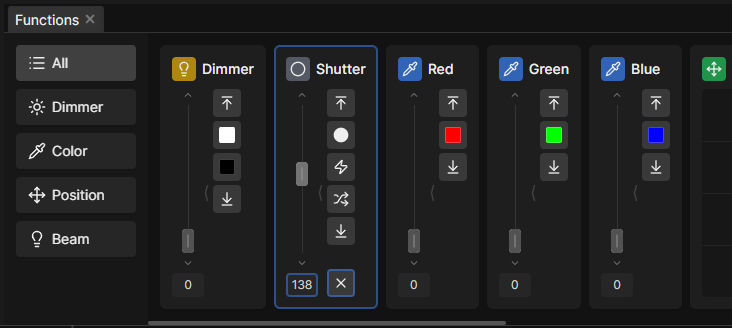
Each channel has a fader with a value field underneath. Drag the fader, or type a value and press Enter.
Two shortcuts are worth knowing right away:
- The mouse wheel over a fader moves it one step, Shift for large steps.
- The x at the bottom of a card releases that function again, so the channel resets and outputs what is rendered live.
- Middle-clicking a single fader releases just that one, without touching the rest of the card.
Use the presets
Every card has Top and Bottom for full and zero. Beyond that the presets follow the channel: a dimmer offers Full and Off, a shutter offers Open, Strobe, Strobe Random and Closed.
Gobo and color wheels show Previous, Current and Next, so you can step through the individual slots and see which one you are on. This also applies to other stepped channels.
When you right-click a fader, a dialog lists every slot with its name and some shortcuts. That is the fastest way to find a specific gobo or color.
Fan values across the selection
Typing a range spreads a value across the selected fixtures.
| Input | Result |
|---|---|
0..255 | Even spread from the first fixture to the last  |
0..255..0 | Rises to the middle of the selection and falls again  |
0#128#255 | Repeats the pattern across the selection  |
The order of the fan follows the order in which you selected the fixtures, so selecting from the other end reverses the gradient.
Turn on Preview Fader Input in Settings under Appearance and the fader marks every value the expression is about to set while you are still typing it, per selected fixture.
Relative offsets
A + or - prefix offsets each fixture from where it already sits, rather than setting an absolute value. It works inside a fan too, so -10..+10 tilts a selection around its current position.
You can mix both in one expression: 100..+20 starts at an absolute 100 and ends twenty above whatever the last fixture had.
Percentages, angles and math
50%is half the range.50pdoes the same if you prefer typing letters.90degor90°on pan and tilt sets a physical angle, converted per fixture. (This must be configured correctly in the fixture definition.)- Plain arithmetic works:
255/2,128\*2.
The variable n holds the number of selected fixtures. That makes 0..360-360/n the standard way to spread an even phase, because it leaves exactly one gap at the end instead of doubling up the first and last fixture.
A typo in an expression evaluates to zero instead of showing an error, so a slip blacks the channel out. Degrees on a channel without angle information do nothing at all.
Using Undo after typing an expression takes you back to the field with the text still in it, so a mistyped expression can be corrected.
Combining operators and expressions
All of these tricks can be combined when putting in values. Here are some examples:
-10%..+10%0..255/2..010°#30deg
Color gradients
The R G B and H S V fields of the color picker take the same expressions. Fanning H is the quick way to a rainbow across a selection:
0..360-360/non H spreads the full color circle over the selection, without repeating the first color at the end.0..60on H stays inside a range, here red to yellow.0#180on H alternates two opposite colors.
Where to go next
- Build and Play Scenes
- Create Effects
- See Functions Reference for every control and the full syntax.