
Effects Panel
Reference for the effect tabs, the shared settings and the effect editors.
The Effects panel creates and edits effects. Effects live in the programmer, so they follow the same rules as any other live value: they run until you clear the programmer or store them in a scene.
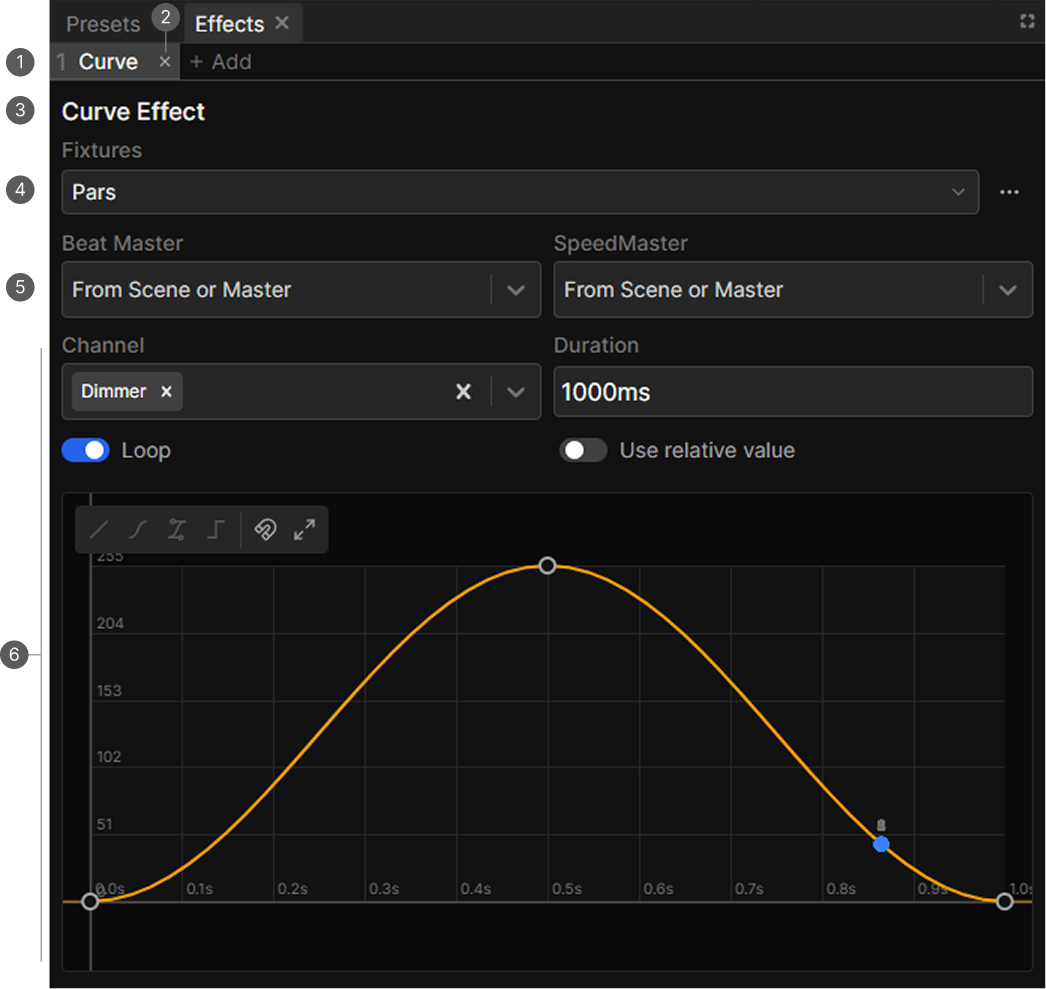
- Tab strip. One tab per effect, plus the Add tab.
- Close button. Appears on a tab while you hover it.
- Header. The effect type.
- Fixtures picker.
- Beat Master and SpeedMaster selectors.
- Editor. The controls for this effect type.
The tab strip
Every effect is a tab, numbered and labeled by its type, for example 1 Curve or 2 Color. Effects have no names.
| Action | Result |
|---|---|
| Click a tab | Selects that effect and opens its editor |
| Click Add | Opens the effect picker |
| Hover a tab, click the x | Deletes the effect |
| Drag a tab | Reorders it |
Which tab is selected also decides what the Phase fader in the Functions panel edits.
Creating an effect
The Add tab shows Select effect type or preset.
Custom creates an empty effect of a type:
| Type | For |
|---|---|
| Curve | Any channel |
| 2D Position | Pan and Tilt |
| Color | RGB and CW |
| Matrix | RGB and CW |
Presets start from a finished effect:
| Row | Presets |
|---|---|
| Color | Fade RGB, Step RGB, Fade RGB+, Step RGB+ |
| Curve | Linear, Sine, Cubic |
| Position | Circle, Eight, Square |
| Matrix | Rainbow, Chase, Fire, Twinkle, Strobe |
Standalone effects will be added in the future. They run without a fixture selection. Strobe and Sparkle are listed there as well as under Matrix, where they already exist as effect types.
Shared settings
Every editor starts with the same three controls.
Fixtures
Shows which fixtures and groups the effect runs on. Click the picker to change them. The list shows the fixture names, or the groups.
Pointing an effect at a group means it follows that group's fixtures, so adding a fixture to the group later adds it to the effect too.
An effect with no fixtures shows a red Effect has no fixtures badge in its header and renders nothing. A Matrix effect is the exception: an empty Fixtures list means every fixture in its Stageview, so its header shows a Targeting every fixture in this Stageview badge instead. See Matrix Effect.
Beat Master and SpeedMaster
Both default to From Scene or Master, which means the effect inherits whatever the scene it plays in uses, falling back to the project masters.
Set them explicitly to pin an effect to a specific tempo or speed control. Beat-typed values follow the beat master, everything else is run by the speed master.
Curve editor
See Curve Effect for the parameters of a curve effect.
Color editor
See Color Effect for the parameters of a color effect.
Position editor
See Position Effect for the parameters of a position effect.
Matrix editor
See Matrix Effect for the parameters of a matrix effect.
Live preview
While an effect is selected, the curve and position editors show a numbered marker per fixture moving along the curve or path.
Effects and the programmer
Effects belong to the programmer.
- Clear programmer deletes every effect not stored in a scene.
- Sneak out does the same after its fade finishes.
- Storing a scene step stores the effects with it, and Insert to step adds them to an existing step.