
Timeline Panel
Reference for the timeline, its lanes, items and toolbar.
The timeline plays scenes and audio along a fixed time axis.
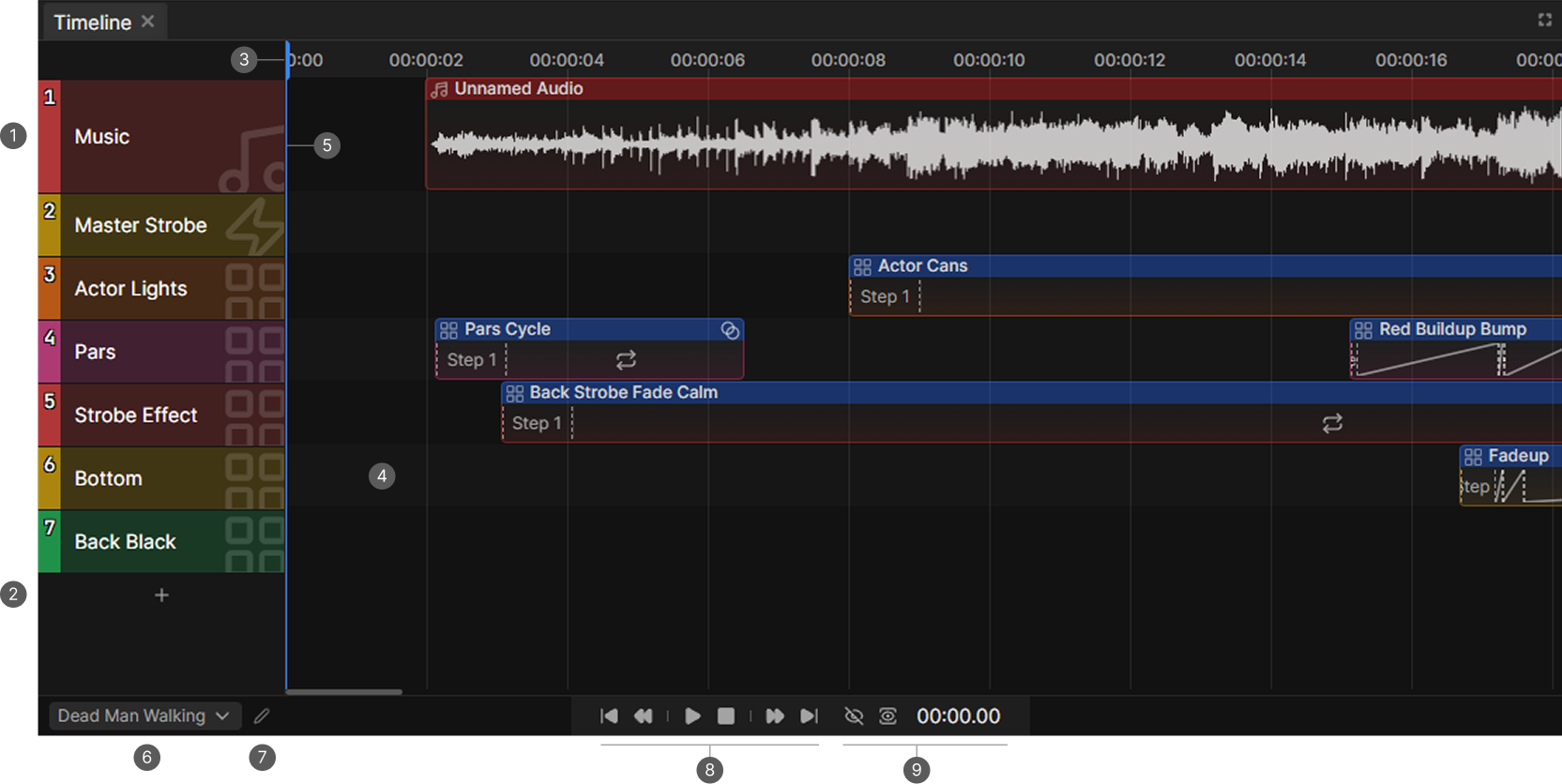
- Lane headers. Drag a lane up or down to reorder lanes.
- Add a lane. Creates a lane.
- Time ruler. The time scale. Click anywhere on it to move the playhead.
- Lanes. Hold the items. Scenes and audio both sit here.
- Playhead. Marks the current position. Drag it to scrub.
- Timeline selector. Switches between timelines and creates new ones.
- Edit menu. Renames or deletes the current timeline.
- Transport. Skip to start, previous, play/pause, stop, next, skip to end.
- Follow toggles and time display. The first eye turns auto-scrolling on and off, the second switches between keeping the playhead centered and just keeping it in view. The number to the right is the playback position in
MM:SS.mm.
Lanes
Lanes group items. A new timeline starts with one lane, and you can add as many as you want. Keeping audio on its own lane makes longer shows much easier to read.
Lanes can be collapsed to save space.
Items
Drag a scene from the Scene List onto a lane to place it. Right-click a lane and choose Insert audio for an audio file.
- Drag an item's header (red for audios and blue for scenes) to move it in time.
- Drag either edge to change its length.
- Right-click an item for its context menu.
- Hold Ctrl or Shift to select several items and move them together.
Items snap to the start and end of every other item and to the playhead. A thin line marks each snap point. Hold Shift while dragging to switch snapping off.
Audio files are referenced in the project file, not copied into it. If you want to move a project to another computer, you need to Export it instead. Import and Export Projects
Item automation
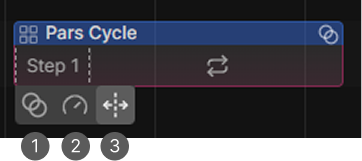
Hover a scene item to reveal its tools.
- Scene Alpha. The item's level over time, from 0 to 100 percent.
- Effect Speed. How fast the item's effects run, from 0 to 10 times.
- Step timing. The fade and wait times of the scene's steps, for this item only.
Effect speed at 0 freezes the effects, 1 is normal speed. Because the axis reaches 10, the normal-speed line sits low in the editor. Beat-timed effects ignore the curve and stay on the tempo.
An item with no speed curve runs at normal speed.
Audio items have one curve of their own, Audio Volume, also from 0 to 100 percent.
View more: Curve Editor
Navigation
- Ctrl and the mouse wheel zooms.
- Shift and the mouse wheel scrolls sideways, as does the scrollbar below the lanes.
- Holding the right mouse button and dragging pans the view.
Keyboard
These work when the Timeline is the focused panel.
| Shortcut | Action |
|---|---|
| Space | Play or pause |
| Delete or Backspace | Delete the selection |
| Ctrl+C | Copy the selection |
| Ctrl+V | Paste at the playhead |
| Ctrl+D | Duplicate the selection |