
Build a ControlDeck
Lay out an on-screen console of buttons, faders and pads, then bind them.
A ControlDeck is a console you build yourself and run from the screen. It uses the same mapping system as MIDI, so a deck and a hardware controller can drive exactly the same targets.
Create a deck
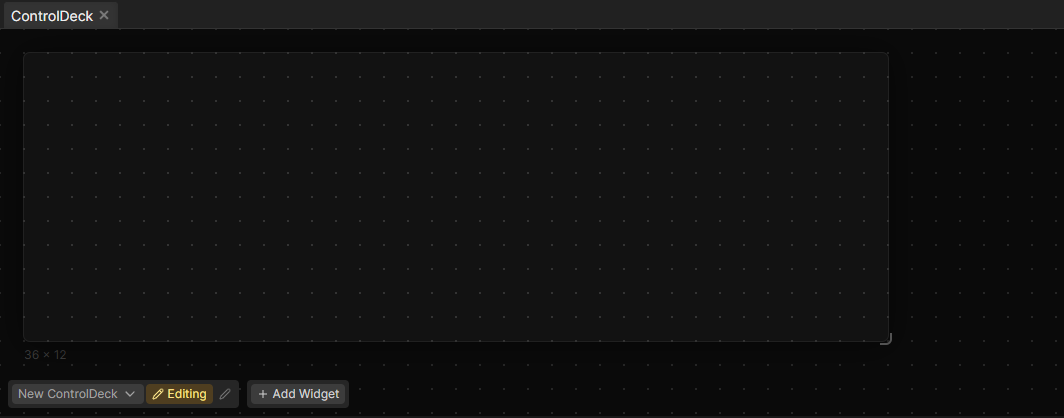
Open the ControlDeck panel and use the dropdown at the bottom left to create a deck. It opens in Editing mode right away. The toggle next to the name switches to Live when you want to use it.
Place widgets
Right-click the canvas and use Add Widget, which drops the widget where your cursor is. You can also use the Add Widget button in the toolbar.
These widgets are available:
- Button for triggers: fire a scene, run an action, toggle a layer.
- Fader for levels: the grand master, a dimmer, an effect speed.
- Pan/Tilt for a position pad.
- Color for a color picker.
- Cue List for a direct scene reference with playback state and buttons.
- BPM for a tap tempo button.
- Timer for a clock, countdown or stopwatch.
- Label for text, for example a section heading.
- Panel for a colored background behind a group of widgets.
Drag widgets to move them, drag their corners to resize. They snap to each other and to the deck's edges and center. Hold Shift to place something freely.
Bind a widget
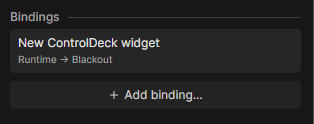
Select a single widget and its Properties open on the right. Under Bindings, click Add binding and pick a target. The list only offers targets that fit the widget, so a button shows triggers and a fader shows levels.
One widget can hold several bindings and fires all of them, which is how one button could both start a scene and switch a layer.
Clicking a binding row opens it on the Control Mapping page. That is where you set the trigger type, add more targets or move the mapping into a layer.
Finish and run it
Resize the deck to fit its contents, either through Resize... in the actions menu or by dragging the corner of the canvas. Turn on Centered in the actions menu so the deck sits in the middle of the panel in live mode.
Switch to Live and the deck is ready. In live mode nothing can be moved by accident, so it is safe to hand over to an operator.
Where to go next
- ControlDeck Widgets lists every widget option.
- Map MIDI and Keyboard drives the same targets from hardware.
- Control Mapping Controls Reference
- Control Mapping Targets Reference