
Organize with Groups and Folders
Save selections as groups and keep them tidy in folders.
A group is a saved selection of fixtures. You can select a group at any time to recall its members, which is faster than selecting them one by one. Groups are also useful for effects and mapping targets, since they follow the group's fixtures.
Create a group from a selection
- Select the fixtures you want in the group.
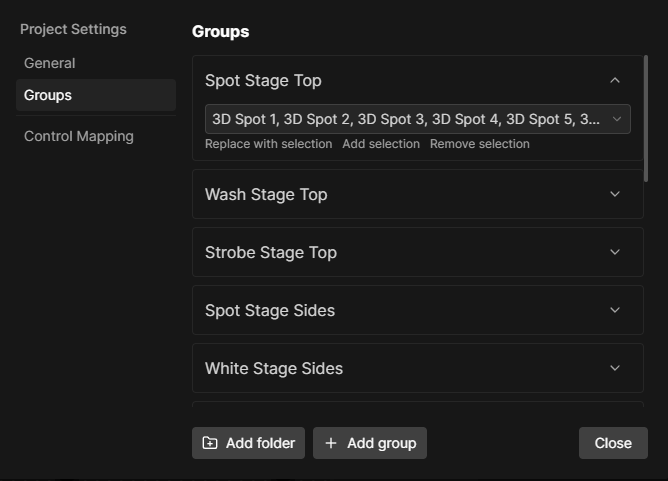
- Open Project Settings and go to Groups.
- Click Add group and give it a name.
The group is built from whatever was selected at that moment. You can also create one while patching by turning on Create new group in the patch dialog, which is the easiest way to get a group per fixture type. You can always edit a group later to add or remove fixtures, or rename it.
Recall a group
Groups appear in the group selector at the top of the Stageview and the Patchlist. Click one to select its fixtures. From there you program, apply a preset or start an effect as usual.
Groups and folders
As the list grows, put related groups into folders. In the Groups editor click Add folder, then drag groups into it. Folders only organize the list, they do not change what a group contains. You can only create top-level folders. (so no folders inside folders.)
Groups in effects and mapping
Effects and mapping targets can point at a group directly. When they do, they follow the group's items. Add or remove a fixture from the group later and everything updates too, without editing each effect.
A useful set of groups
Most rigs end up with three kinds:
- By type, for example all wash lights or all moving heads.
- By position, for example front truss, back truss or floor.
- By role, for example key light or audience blinders.
If the list gets too long, you can put them into folders. For example, a "By type" folder with all the fixture type groups inside.
Where to go next
- Create Effects and point them at your groups.
- Selection and Groups explains how selection works underneath.