
Highlight and Lowlight
Focus the fixtures you are working on and dim the rest.
Highlight and Lowlight help you while programming. They make clear which fixtures you are working on without changing anything you have stored.
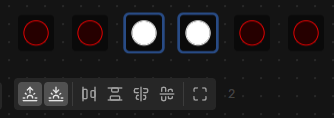
The buttons are located in the Stageview toolbar, next to the selection tools and in the Tricks modal located in the top toolbar.
Highlight the selection
Select some fixtures and click Highlight (the sunrise icon) in the Stageview toolbar. The selected fixtures go to full white at full intensity with the shutter open, so you can pick them out on stage instantly. Toggle it off and they go back to their normal output.
Dim everything else
Click Lowlight (the sunset icon) to dim every fixture that is not selected. The rest of the rig drops to a low intensity, so you can see the selected fixtures clearly even in a bright room.
Use them together
Both can be on at once. The selection blasts full while everything else drops back, which is the fastest way to isolate a group visually.
These are live tools and not part of your show. They sit on top of the live output and do not touch your scenes or the programmer, so you can leave them on while you program and switch them off before you run the show.
Put them on a button
Both are Action targets in the Control Mapping system, so you can bind them to a MIDI button or a key and toggle them.
Where to go next
- Map MIDI and Keyboard
- See Stageview Reference for the rest of the toolbar.