
Functions Panel
Reference for the channel controls, presets and the value input syntax.
The Functions panel controls the channels of the selected fixtures. It reads the current selection, groups the channels by what they do and gives each one a fader, a value field and a set of presets.
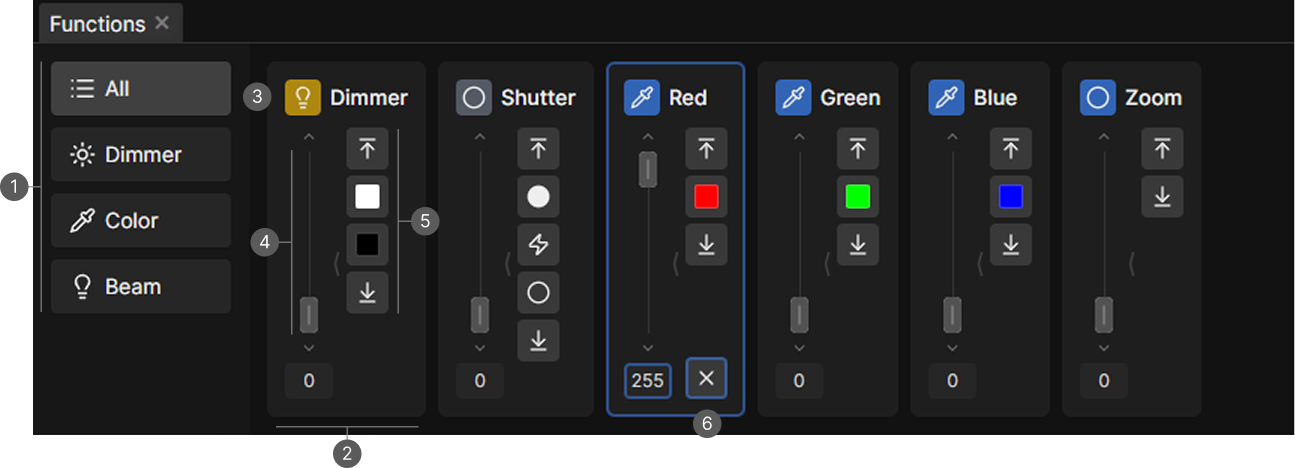
- Category sidebar. Switches between function groups.
- Function card.
- Card title. Icon and channel name.
- Fader. With an arrow above and below and the value field underneath.
- Preset column. Quick values for this function.
- Disable button. Releases the card's values, only visible while the card holds a value.
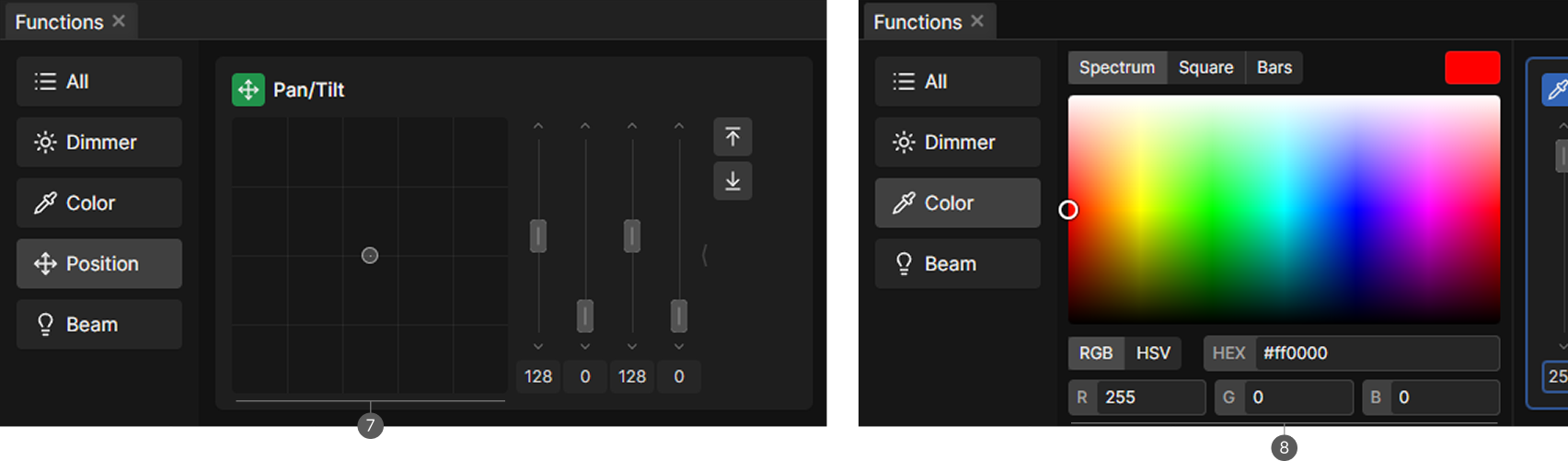
- Pan/Tilt pad. On the position card.
- Color picker. First card in the Color group.
Function groups
The sidebar lists All plus every group present in the current selection:
| Group | Contains |
|---|---|
| Dimmer | Intensity and shutter or strobe |
| Color | RGB and other color mixing, color presets, color wheels |
| Position | Pan, tilt, pan/tilt speed, continuous rotation |
| Beam | Gobo wheels, beam, blades, frost, iris, prism, zoom, focus |
| Effect | Built-in fixture effects |
| Other | Rotation, speed, time, maintenance and anything unmatched |
Groups only appear when the selection actually has those channels. If the active group vanishes because you selected different fixtures, the panel falls back to All.
A function card
Each card covers one function, which is usually one channel plus its fine channel. The title shows a colored icon and the channel name, and the card gets a blue ring while it's active and holds a programmer value.
A orange ring instead means the value comes from a preset applied in the programmer, not from a fader you moved. Setting the fader by hand takes it over, since manual values render above preset references.
An orange warning triangle marks a channel flagged as constant, where changing the value may have unexpected results.
A grey ring means the channel applies to the whole device rather than to the selected pixels, for example Pan or Tilt on a pixel bar. Setting it with several pixels of one device selected still writes a single value. See Subfixtures.
While Prepare Mode is on, the whole panel gets an orange border. What you set here is not rendered until you press Execute.
Faders
Every fader has an up arrow, the fader itself, a down arrow and a value field.
| Input | Result |
|---|---|
| Drag the fader | Sets the value |
| Click the track | Jumps to that value |
| Arrow buttons | One step up or down |
| Mouse wheel | One step up or down |
| Shift and wheel | 20 steps up or down |
| Arrow keys | One step, when the fader is focused |
| Middle-click | Releases that one fader |
| Right-click | Opens the fader dialog |
| Type and press Enter | Commits the value field, as does clicking away |
Values run from 0 to 255. The Phase fader is the exception and runs to 360.
Disabling a value
While a card holds a value, an x appears at the bottom of the preset column. It releases every fader on the card, coarse and fine.
Middle-clicking a fader releases only that one, which is how you drop a fine channel or a single axis without touching the rest of the card.
Presets
Every card has Top and Bottom, which set the maximum and zero. What sits between them depends on the channel.
| Channel type | Presets |
|---|---|
| Dimmer | Full and Off |
| A color component | Full, with a swatch in that component's color |
| Shutter | Open, Strobe, Strobe Random and Closed, whichever the fixture supports |
| Stepped channels | Next, Current and Previous, see below |
Stepped channels
Gobo wheels, color wheels, color presets and other channels can be stepped, meaning their range is divided into named slots. The preset column shows three buttons that move through the slots:
- Next jumps to the following slot.
- Current shows the slot you are on, highlighted with a ring.
- Previous steps back to the slot before.
Each carries a color swatch when the slot has a color. If the value sits between slots, for example while a wheel spins, the middle button just reads Current and is disabled, while Next and Previous still take you to the nearest slots.
For the full list of slots at once, right-click the fader.
The fader dialog
Right-clicking any fader opens the value dialog for that channel.
Steps lists every capability of that channel with its name, its DMX range and a color chip when the step has a color. The step containing the current value is highlighted, and clicking a step jumps to the start of its range.
Presets are one-click expressions, applied immediately:
| Button | Sends |
|---|---|
0 and the maximum | That value on every fixture |
0 -> 255 and 255 -> 0 | A fan across the selection |
0 -> 255 -> 0 and 255 -> 0 -> 255 | A symmetric fan |
| Half and double | The current value divided or multiplied by two |
0 -> 360 - 360 / n | An even spread used for effects |
Changes made on the fader or in the value field only apply when you press Save.
Value input syntax
The value field accepts far more than numbers.
| Form | Example | Meaning |
|---|---|---|
| Number | 128 | The same value on every selected fixture |
| Percent | 50%, 50p | Half of the range. Decimals are allowed |
| Degrees | 90deg, 90° | A physical pan or tilt angle, converted per fixture |
| Fan | 0..255 | Spreads evenly from the first fixture to the last |
| Symmetric fan | 0..255..0 | Rises to the middle of the selection and back |
| Repeat | 10#20#30 | Cycles the pattern across the selection |
| Relative | +10, -5 | Offsets each fixture from its current value |
| Relative fan | +10..-10, -10..0..+10 | A fan of offsets |
| Mixed | 100..+20 | Absolute and relative terms in one expression |
| Math | 255/2, n*10, sqrt(255) | Full arithmetic |
| Math in a fan | 0..255-255/n | Each part is calculated on its own |
n stands for the number of selected fixtures, which is what makes 0..360-360/n spread an even phase no matter how many fixtures you picked.
A relative value goes from the fixture's programmer value, or from what is currently rendered if the programmer holds nothing for that channel.
A mistyped expression evaluates to zero rather than being rejected.
Previewing an input
Settings → Appearance → Preview Fader Input marks the values an expression will set while you are still typing it. For example, 255/2 shows a mark at 127.
The setting is off by default.
The Pan/Tilt pad
The position function merges pan and tilt into one card with a pan/tilt pad next to the faders. Drag the crosshair to aim, and hold Shift while dragging for fine movement. On fixtures with fine channels the pad uses the full 16 bit resolution.
Settings → Appearance has Invert Pan/Tilt X-Axis and Invert Pan/Tilt Y-Axis, which reverse the drag direction of the pad.
The color picker
When the Color group is active and the selection contains an RGB fixture, a color picker appears as the first card. It sets the color mixing channels of every selected fixture at once.
The R G B and H S V fields take the same value input syntax as a fader. Each field sets only its own component and leaves the others as they are on each fixture, so 0..360-360/n on H spreads a rainbow across the selection while every fixture keeps the brightness it had, and setting S afterwards keeps those hues. Hue counts in degrees up to 360, Saturation and Brightness in percent up to 100.
Unlike the wheels and bars above them, these fields apply on Enter or when you click away, since an expression only means something once it is finished. HEX takes a single color, not an expression.
Phase
When an effect is selected, a Phase card appears in All and Effect, titled after the effect, for example Phase for Curve 1. Its fader has a range of 0 to 360 and offsets fixtures in the effect.
Phase is stored on the effect rather than on a DMX channel. It takes the full input syntax.