
ControlDeck Panel
Reference for the on-screen console panel, its canvas and its bindings.
A ControlDeck is an on-screen console you build from widgets. It drives the same targets as a MIDI controller, so both can run together.
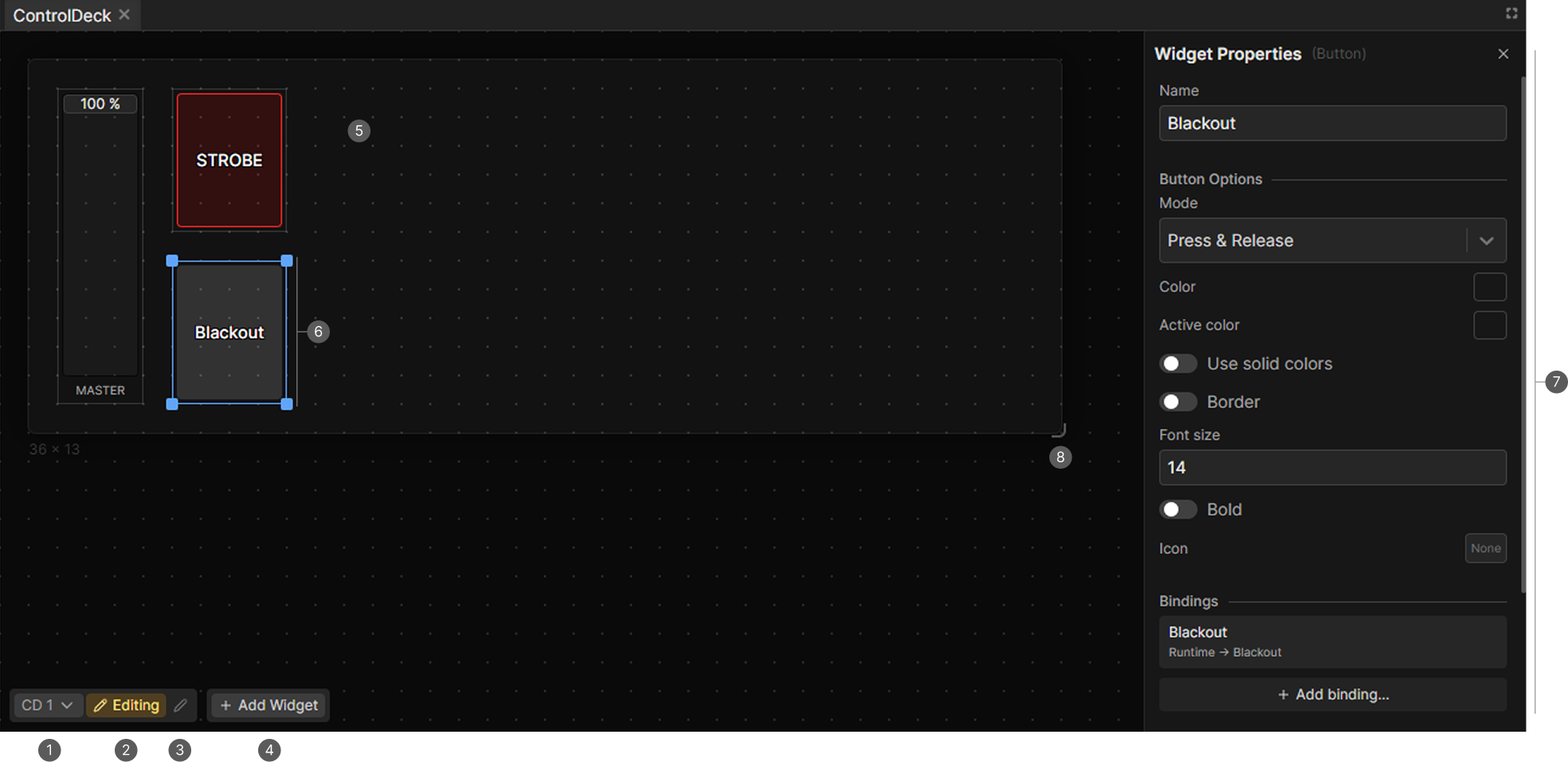
- Deck selector. Switches and creates decks.
- Mode toggle. Editing or Live.
- Deck actions menu. Rename, resize, center or delete the deck.
- Add Widget. Edit mode only.
- Canvas with its grid.
- Selected widget with its resize handles.
- Properties panel. On the right side when in edit mode with exactly one widget selected.
- Deck resize handle. Bottom right corner of the canvas.
Decks
The selector at the bottom left switches decks and creates new ones, organized in folders. A newly created deck opens in edit mode automatically.
The actions menu next to it holds:
| Item | What it does |
|---|---|
| Rename | Renames the deck |
| Centered | Centers the deck in the panel in live mode, ticked when on |
| Resize... | Asks for width and then height in cells |
| Delete ControlDeck | Deletes the deck and all its widgets |
You can also drag the handle at the bottom right corner of the canvas to resize, down to a minimum of 4 by 4 cells.
Adding widgets
Add Widget in the toolbar opens a list and places the widget at the top left corner. Right-clicking the canvas and using Add Widget there places it on your cursor.
Arranging widgets
| Action | Result |
|---|---|
| Drag a widget | Moves it, snapping to other widgets and to the deck edges and center |
| Shift while dragging | Disables snapping |
| Drag a corner handle | Resizes, down to the widget's minimum size |
| Click a widget | Selects it |
| Shift click | Adds or removes it from the selection |
| Drag on empty canvas | Lasso select, selecting anything the box touches |
| Shift and drag | Adds to the current selection |
While dragging, dashed blue guides show which edges or centers you snapped to. Everything lands on whole grid cells.
Panels always render behind the other widgets. Apart from that, widgets stack in the order they were created.
Keyboard
Edit mode only, and only when the panel is focused.
| Shortcut | Action |
|---|---|
| Delete or Backspace | Delete the selection, without confirmation |
| Ctrl+C | Copy |
| Ctrl+V | Paste, offset by one cell |
| Ctrl+D | Duplicate, offset by one cell |
| Ctrl+A | Select all widgets |
Copying carries the widget's look and options, but not its bindings. A pasted button is unbound.
Properties
Selecting exactly one widget in edit mode opens its properties on the right. Every widget has:
- Name, which most widgets also display.
- Position: X, Y, Width and Height in grid cells.
Everything else depends on the type, see ControlDeck Widgets.
Bindings
Only Button, Fader, Pan/Tilt and Color can be bound. The readout widgets are configured directly instead.
Add binding offers only targets that accept the widget's kind, so a button lists triggers and a fader lists levels. A widget can hold several bindings and fires all of them.
Each row shows the mapping name, its target and, if it sits in a layer, the layer name and whether it is active. Clicking a row opens it on the Control Mapping page for full editing.
New bindings are created as global mappings. To put one in a layer, move it there on the Control Mapping page.
The trash icon on a binding deletes the whole mapping, not just the control.
Widgets whose binding sits in an inactive layer do nothing when pressed.