
Presets Panel
Reference for preset pages, the grid, the four item types and how presets are applied.
The Presets panel holds buttons for looks, values and selections, placed freely on a grid. Presets are not a one time copy of values. A capability or value preset stays referenced in the Programmer, so editing the preset changes what is on stage and a Scene step can store the reference instead of the values.
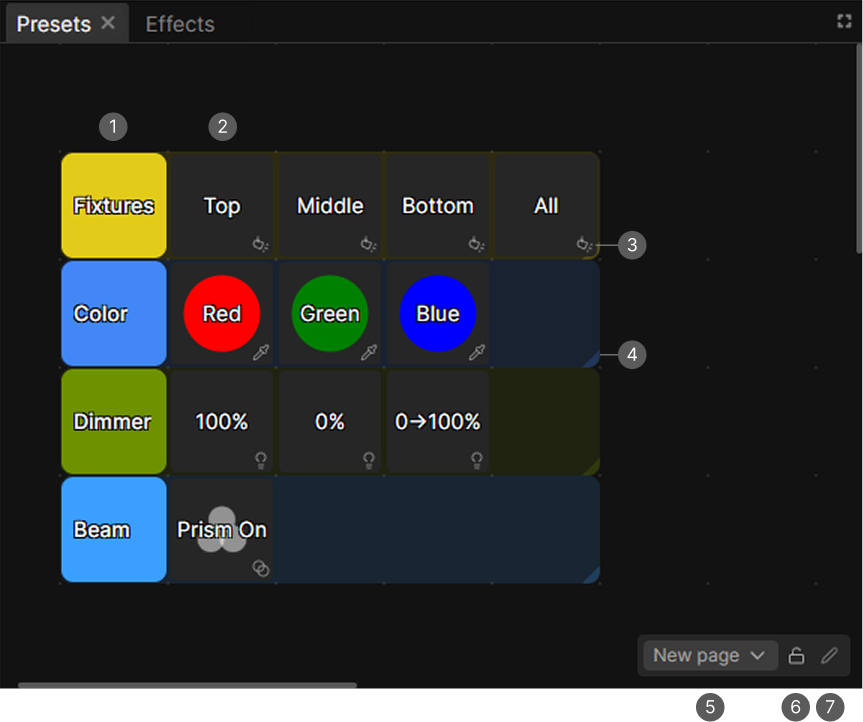
- Group. A colored block behind the tiles, purely visual.
- Preset tile. A button for a selection, capability or value preset.
- Type icon. Shows the preset type, can be hidden in Settings.
- Group resize handle. Drag to resize the group.
- Page selector. Switches pages and creates folders.
- Lock page for live use.
- Edit page for grid size, hiding type icons, renaming and deleting the page.
Pages
The selector at the bottom right switches pages, and pages can be organized in folders. Its green + creates a page, the folder button creates a folder, and right-clicking a row lets you Rename and Delete the item. The last remaining page cannot be deleted.
Next to it sit two more controls:
| Control | What it does |
|---|---|
| Lock | Locks the page for live use. Editing, dragging and the context menus are off, clicking still fires |
| Pencil | Grid size, Hide type icons, Rename and Delete page |
Grid size sets the cell size in pixels, between 46 and 200. Holding Ctrl and scrolling over the grid does the same thing.
Hide type icons removes the small type marker in the bottom right corner of every tile, for a cleaner look.
The grid
Everything sits on a free grid. Right-click an empty cell to add something at that spot:
| Entry | Creates |
|---|---|
| Add selection preset | Selects fixtures |
| Add capability preset | Sets one capability, for example Color or Zoom |
| Add value/effect preset | Stores a snapshot of the Programmer |
| Add control button | Fires a Control Mapping |
| Add group | A colored block behind the tiles |
Drag a tile to move it, drag the handle in its bottom right corner to resize it. Right-click a tile to edit and delete it.
Groups
A group is a purely visual block. It has a name, a color, a position and a size, and it renders behind the tiles. Nothing belongs to a group, but dragging a group moves the tiles sitting on it along with it, so you can shift a whole palette at once.
Right-click a group to edit and delete it. Deleting a group leaves its tiles where they are.
Shared settings
Right-click a preset and choose Edit. All four types share these fields:
| Field | Notes |
|---|---|
| Name | Shown on the tile |
| Icon | Picked from the icon library, and removable again |
| Color | The tile background, removable again |
Capability and value presets additionally have a Fade Time, see Fade Time.
Changes save automatically.
Selection preset
Selects fixtures. Fixtures takes a mixed list of fixtures and groups.
| Behavior | Result |
|---|---|
| Overwrite selection | Replaces the selection. The default |
| Add to selection | Adds its fixtures to the selection |
| Toggle fixtures | Adds its fixtures, clicking again removes them |
Firing a selection preset also records where the selection came from. A capability preset fired afterwards then references the selection preset instead of a fixed fixture list, so changing the selection preset's targets changes what the capability preset drives.
Capability preset
Sets one capability on the fixtures it applies to. This is the type you build palettes from.
| Capability | Value |
|---|---|
| Dimmer | A value in Functions syntax |
| Color | A color, matched to the nearest slot on fixtures that only have a color wheel |
| Pan/Tilt | A pan and a tilt value, either one can be left empty |
| Shutter | Open, Closed, Strobe or Strobe random, with a rate in Hz |
| Zoom, Focus, Iris, Frost, Beam, Prism, Color Temperature, Effect, Effect Speed, Gobo Rotation | A named step from the fixture, or a raw value |
Because the value is text in Functions syntax, a fan such as 0..255 works here too and spreads across the fixtures the preset applies to.
A clean numeric value on a proportional channel is treated as a physical
value, for example 20 on Zoom means 20 degrees and lands correctly on
fixtures with different zoom ranges.
Fixtures
Apply to live selection on means the preset acts on whatever is selected when you fire it. Turn it off to give it a fixed list of fixtures and groups, which makes the preset independent of the selection.
Release other presets of the same capability
On by default. Firing the preset takes its fixtures out of every other active preset of the same capability, so a color palette behaves like a radio group instead of stacking.
Turn it off if you want presets of the same capability to stack.
Per fixture overrides
Record selection stores the current live values of the selected fixtures as per fixture overrides, in the same shape as the shared value. Fixtures with an override use it, the rest fall back to the shared value.
This is what makes a position palette have independent values: one "Stage Center" preset that points every fixture at its own angle. Clear removes all overrides.
Value and effect preset
Captures the Programmer, both channel values and effects.
| Scope | What is captured |
|---|---|
| All programmer values | Everything in the Programmer |
| Selected fixtures only | Only values and effects touching the selection |
Overwrite recaptures the current Programmer into the same tile.
A value preset stored with Selected fixtures only is bound to the selection it was fired with, an All programmer values preset is not and stays active regardless of the selection.
Control button
Looks like a preset but fires a Control Mapping instead of applying values. Add it under Control Mapping as a Preset Button and give it targets there, the same way a ControlDeck button works.
Hold makes the button press on pointer down and release on pointer up instead of a single tap. Its lit state comes from the mapping's feedback.
This can be useful if you want to have a Blackout or Prepare mode button for example, directly on the Presets panel.
Applying and releasing
Clicking a capability or value preset adds a reference to the Programmer, clicking it again removes it. The reference resolves live, so:
- Editing the preset changes what is currently on stage.
- A selection bound reference follows the selection it was fired with. Firing the same preset with a different selection adds a second application instead of replacing the first.
- Storing a Scene step stores the reference, not the resolved values. The step re-resolves the preset on playback.
Selection presets are referenced as long as the selection was changed by them and not modified.
Active state
An active preset has a blue ring. Capability and value presets also show a small dot in the top right corner while they are referenced in the Programmer at all, even if the current selection does not match.
Fade Time
A capability or value preset fades in when fired live. The global default sits in Settings under General, Preset Fade Time, and can be given in milliseconds or in beats. It is 0 by default, which means presets snap.
Each preset can override it in its Fade Time field. The field reads Global until you set a value, and the red X next to it goes back to the global setting.
Only some channels are crossfaded: Dimmer, RGB color, Pan and Tilt, Zoom, Focus, Iris, Frost, Beam and wheel rotations, plus prism rotation. Everything that steps between slots snaps, so a color wheel, a gobo or a shutter mode never fades through the slots in between.
The fade starts from the output that was on stage the moment you fired the preset.